
















A message can travel across the internet encrypted and still be readable by an AI assistant once it appears on your phone.
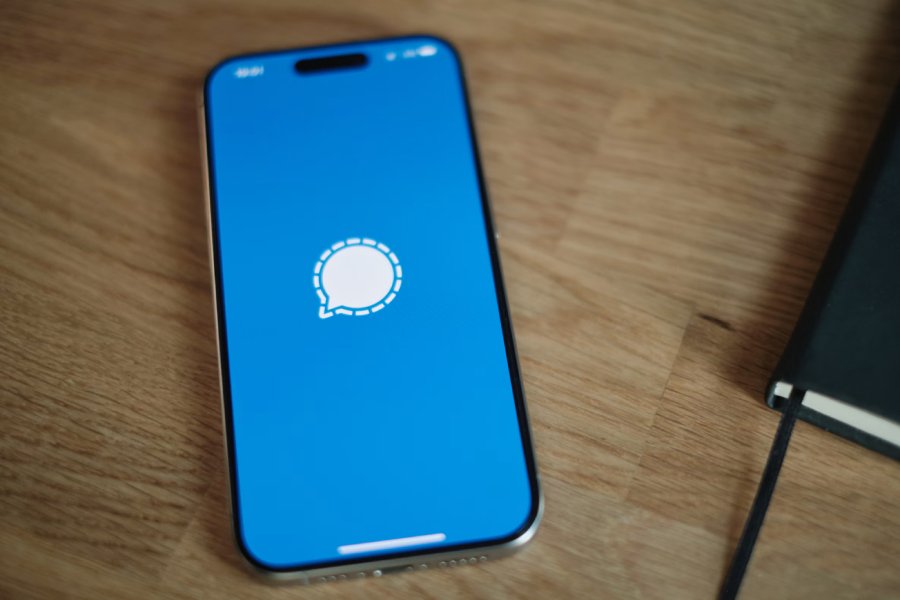
On Nov. 20, Signal Foundation President Meredith Whittaker announced new screen protections designed to keep Apple’s Siri AI and Google’s Gemini from reading chats displayed in the app. Signal turns the protection on by default on eligible iPhones. On supported Android devices, it switches on when Signal detects an assistant trying to read the screen.
The same setting blocks users from taking screenshots or recording the screen inside Signal. What it covers depends on the device.
How Signal’s screen protections work on each platform
In her Nov. 20 announcement, Whittaker described the operating-system environment as “increasingly hostile to privacy.” Signal’s support documentation spells out when the protection kicks in and what users can change.
Platform | What Signal protects |
| iPhone | Block Siri AI is on by default with Signal 8.37 or later on iOS 27 or later. Users who need a screenshot can pause the setting for 10 minutes. |
| Android | With Signal 8.35.1 or later, Screen security turns on when Signal detects an assistant trying to read the app’s screen. Detection varies by device. Users can also turn it on manually. |
| Windows 11 | Signal Desktop has blocked screenshots by default since 2025 to prevent Microsoft Recall from capturing chats. |
| macOS 27 | Signal says it cannot reliably block screenshots. It recommends adding Signal to Excluded Apps under System Settings → Siri to limit proactive Siri access. |
Turning off screen protection can expose messages from everyone in the conversation to on-screen scanning. Signal says screenshot blocking also leaves other potential ways for assistants to access app data, including through the device’s file system. It is asking Apple, Google, and Microsoft for documented controls that cover screens, files, notifications, and APIs.
What security teams should test before enabling AI assistants
End-to-end encryption protects messages in transit. Once an employee opens a chat, what an assistant can see depends on the app, the device, and the permissions in effect. That same issue applies to other secure messaging apps and business tools that show sensitive information on screen or in notifications.
Start with a managed device running the same policies employees receive. Use a test account and a dummy conversation so the test can show what the assistant sees without exposing real messages.
- Test the open app. Check whether the assistant can read or summarize a message visible on screen. On Android, confirm whether Signal’s Screen security setting activates on each model in your fleet.
- Test notification previews separately. Repeat the check with the app closed and the device locked. If sensitive text is visible in a preview, review notification settings and which apps or services have permission to read notifications.
- Check who can change the settings. Find out which controls your device management platform can enforce and which employees can switch off. Record the results by device model and OS version, then rerun the checks after major OS or assistant updates.
For teams that build internal apps, start with what the app displays. If a notification only needs to tell someone that a case was updated, leave the customer name and case details inside the app. That reduces how much information is exposed even on devices where screen protection varies.
Read more: Signal’s screen protections address one way assistants can see messages. Reuters found that Meta’s Muse could also read Signal content through Android notifications and Mac permissions.