
















The Chrome version number alone won’t tell you whether your Chromebook has Google’s Nov. 18 operating system fixes.
On Nov. 18, Google announced a Stable-channel update for most ChromeOS devices. The rollout pairs ChromeOS build 16868.24.0 with browser version 158.0.8127.65. Google’s bulletin, titled "ChromeOS and ChromeOS Flex," lists fixes for the browser as well as issues involving virtual machine isolation, the Linux kernel, and third-party certificates.
If you own a Chromebook, check the operating system version in Settings and restart when the update is ready. If you manage a fleet, check what devices are actually running after they restart, rather than treating the rollout announcement as proof they’re patched.
What the security update fixes
Google separates the Chrome browser fixes from other security fixes in the bulletin.
On the operating system side, the company lists a high-severity issue involving a virtual machine escape and local privilege escalation, a high-severity Linux kernel issue, and a medium-severity issue involving third-party certificates. A virtual machine is designed to keep its code separate from the host system. An escape can break that separation, which is why these fixes matter even if users spend most of their time in the browser.
The browser section includes high-severity issues affecting components such as Chrome’s V8 JavaScript engine and WebRTC, which supports real-time communication in the browser. Those are part of the Chromebook release, but the bulletin does not give a single total for the ChromeOS update.
That distinction matters if you saw the Chrome 158 desktop coverage. The 204 figure in that story is for the separate desktop browser release. Chrome and other Chromium-based browsers share some underlying code, but a browser patch on one platform does not tell you which operating system fixes are installed on another.
What to check | Nov. 18 Stable release |
|---|---|
ChromeOS build | 16868.24.0 |
Included Chrome browser | 158.0.8127.65 |
Rollout scope | Most ChromeOS devices, according to Google |
How to check and update your Chromebook
Google’s Chromebook update guide says devices automatically check for and download updates when connected to the internet. You can also check manually:
- Connect to Wi-Fi. Select the time in the bottom-right corner, then open Settings.
- Open About ChromeOS. The page shows your current operating system version under Google ChromeOS.
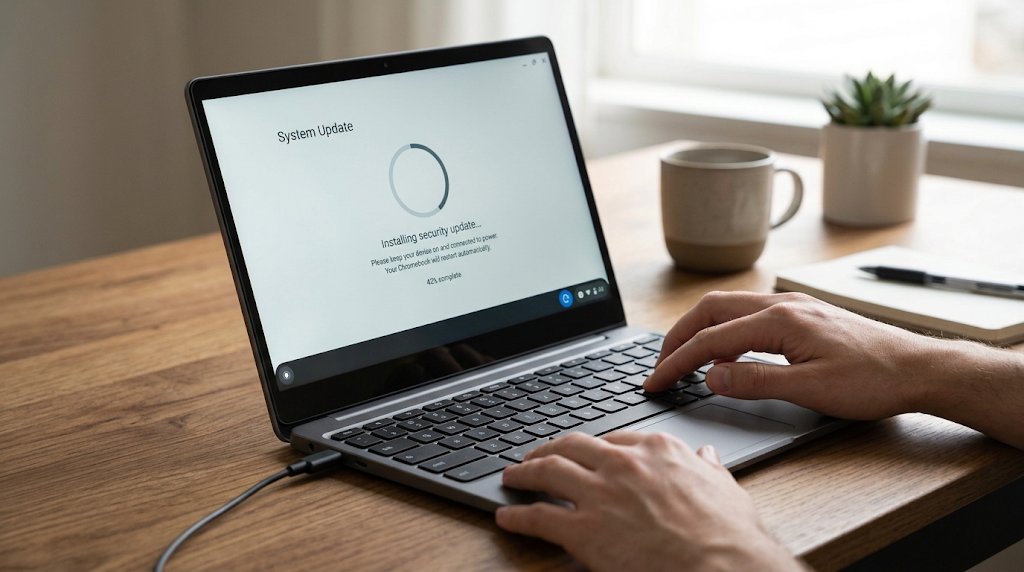
- Select Check for updates. If the device downloads an update, save your work and select Restart when prompted.
- After the Chromebook restarts, return to About ChromeOS. To compare the exact OS build, open Additional details, copy Build details, and look for Platform in the copied text. That’s the number to compare with 16868.24.0, not the one labeled Google Chrome.
If the update doesn’t appear, the bulletin says it’s rolling out to most devices, but it doesn’t give a date for each model. If it’s an older Chromebook, check the model against Google’s automatic update schedule. If the device belongs to your school or employer, ask your IT team before changing the release channel.
What IT teams should verify before closing the patch ticket
A Chromebook can be missing from the rollout for several reasons: It hasn’t checked in, it’s waiting for a restart, or its update policy is holding it on a different release. Those cases need different follow-up. For a school managing shared Chromebooks or a business running a loaner pool, here’s how to sort them out:
- Find the devices you haven’t heard from. Compare the Google Admin console’s Versions report with your inventory. The report covers devices that checked in during the previous 28 days, so a spare Chromebook that’s been sitting in a cabinet may not show up. Keep those devices on a separate follow-up list and reconnect them before issuing them again.
- Separate policy holds from missed updates. If a device reports an older version, check its release channel, version pin, and rollout schedule. A Chromebook intentionally on a different channel should be checked against that channel’s supported release. If a device is supposed to be on Stable, check whether the update is available for that model and whether a policy is holding it back before changing any settings.
- Treat “pending reboot” as unfinished. Google’s device details distinguish a pending reboot from a completed update. Schedule the restart between classes or shifts, then verify the installed platform version after the device checks in again. For the Nov. 18 Stable release, the platform build is 16868.24.0. Use the installed build, not the download status, as your evidence.
The patch management takeaway: Keep three separate lists for devices still waiting for an update or restart, policy exceptions you’ve verified, and devices you haven’t heard from. That tells the help desk which machines need attention before the next person signs in.
Related reading: See how Google handled an earlier Chrome zero-day and which desktop builds received the fix.